


Enterprise UX Design: Balancing Power Users and New Users Without Sacrificing Either
Enterprise UX design is one of the most demanding disciplines in B2B product work, and one of the most underappreciated. Every enterprise product serves two very different audiences simultaneously: the power user who has lived in the software for three years and knows every keyboard shortcut, and the new hire who opened the dashboard for the first time this morning.
Get it wrong in one direction and you alienate experts who need speed. Get it wrong in the other and new users drown in complexity before they ever reach value. This guide walks through the core tension, five proven strategies, and the common mistakes that cause even well-resourced teams to get it wrong.
The Core Tension in Enterprise Software UX
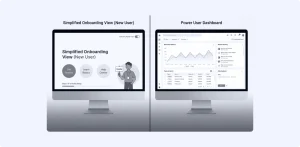
Enterprise applications differ fundamentally from consumer products. Users tend to be specialists with highly precise, repeatable, and often technical workflow needs. At the same time, the software must be accessible to new employees, so enterprise UX designers face a unique challenge: supporting deep expertise without overwhelming beginners.
Unlike consumer apps, where most users are generalists, enterprise software is used by specialists who demand shortcut-driven interaction models. Power users expect keyboard commands, batch processing, and customizable workflows. Designing strictly for “simplicity” risks alienating these experts, slowing down tasks they perform dozens of times daily.
The goal is not a compromise. It is architecture — a system designed deliberately for both ends of the spectrum.
Strategy 1: Role-Based Interface Design
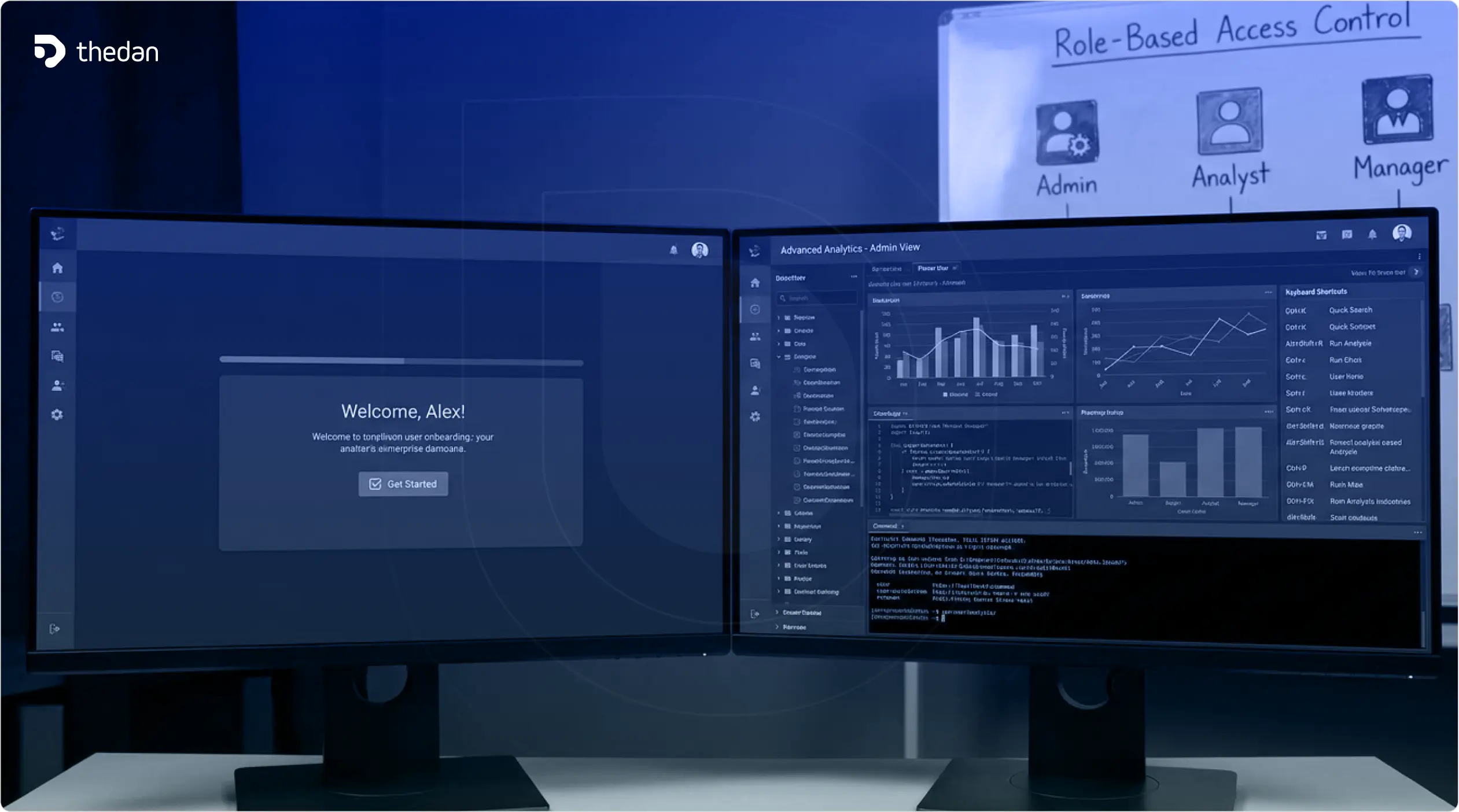
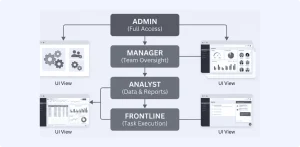
The single most effective pattern in enterprise UX design is role-based interfaces. Enterprise applications typically serve multiple roles simultaneously — analysts, managers, administrators, and frontline staff — each with different responsibilities, priorities, and data needs.
- Display only relevant tools and data for each role — an administrator sees security and analytics panels while a regular user sees a streamlined workflow view
- Maintain consistent design patterns across all role variations so switching views does not require relearning the product
- Conduct role-specific user research to uncover daily tasks, technical expertise levels, pain points, and compliance concerns
Microsoft uses this strategy extensively with role-based focus groups for Microsoft 365, Azure, and Dynamics — segmenting by role and maturity level to understand how different users collaborate within the same system.
Strategy 2: Progressive Disclosure
Progressive disclosure is the most powerful tool for serving both novice and expert users from the same interface. The technique reveals information in manageable layers — showing only essential options initially and surfacing advanced features as users need them.
- Reduces cognitive load for new users who do not yet need advanced controls
- Keeps expert workflows fast by offering quick access paths to advanced features
- Prevents feature overwhelm that causes new user abandonment
- Allows the interface to adapt as a user’s competence grows over time
A well-implemented progressive disclosure design means a new user and a power user can open the same screen, and both feel like it was designed for them.
Strategy 3: AI-Powered Personalization
AI is rapidly becoming a core layer of enterprise UX — not a bolt-on feature. For the challenge of balancing user types, AI offers powerful adaptive solutions:
- Predictive search and smart filtering: surfaces the most relevant records, reports, or actions based on role, usage history, and context
- Decision support: highlights anomalies, trends, or risks hidden in large datasets, surfacing insight for less experienced users automatically
- Automated task suggestions: recommend next steps, approvals, or follow-ups based on workflow patterns, coaching new users without requiring them to know what to do next
Strategy 4: Keyboard-First Shortcuts for Power Users
While designing clean interfaces for new users, it is equally essential to build a robust keyboard layer that power users can learn over time. Think of it as two layers: the visual interface for discoverability, and the keyboard layer for execution speed.
- Command palettes (popularized by Figma and Linear) give power users instant access to any feature by typing
- Configurable keyboard shortcuts users can customize for their most-used actions
- Inline tooltips that teach shortcuts to users transitioning from novice to expert
Strategy 5: Onboarding That Grows With the User
New user onboarding in enterprise software should not be a one-time product tour — it should be an ongoing, contextual layer that fades as users build competence.
- Contextual tooltips that appear the first time a user encounters a feature, then disappear permanently
- Onboarding checklists guiding new users through their first high-value workflows
- Empty state guidance that teaches users what to do before they have any data in the system
Common Mistakes to Avoid in Enterprise UX Design
- Forcing a universal interface: One dashboard that tries to serve the CEO, the analyst, and the new sales rep will serve none of them well.
- Designing purely for simplicity: The instinct to simplify everything alienates power users. Simplicity means reducing unnecessary friction, not removing capability.
- Ignoring keyboard and bulk actions: Power users perform the same tasks hundreds of times per week. Every unnecessary click compounds into hours of lost productivity.
Key Takeaways
- Enterprise UX design must serve specialists and beginners from the same product
- Role-based interfaces are the single most effective structural solution
- Progressive disclosure lets complexity scale with user competence
- AI personalization adapts the experience without manual configuration
- Keyboard shortcuts and command palettes are non-negotiable for power users
- Onboarding should be contextual and continuous, not a one-time tour
Balancing power users and new users is not a UX problem with a single solution. It is an ongoing design discipline that requires dedicated role research, smart information architecture, progressive disclosure, and AI-assisted adaptation. The companies that get this right don’t just retain users, they make those users measurably more productive
Frequently Asked Questions
What is enterprise UX design?
Enterprise UX design is the practice of designing software interfaces for business tools used by employees with specialized roles and repeatable workflows. Unlike consumer apps, enterprise UX must serve both expert power users who demand speed and efficiency, and new employees who need guided onboarding, simultaneously.
How do you design enterprise software for both power users and new users?
The most effective approaches are:
- Role-based interface design that tailors the UI to each user’s responsibilities.
- Progressive disclosure that reveals complexity in layers.
- Keyboard-first shortcuts layered beneath a clean visual UI.
- Contextual onboarding that fades as users gain expertise.
- AI-powered personalization that adapts the interface based on usage patterns.
What is progressive disclosure in enterprise UX?
Progressive disclosure is a UX design technique that shows only essential options first, revealing advanced features progressively as users need them. In enterprise software, this reduces cognitive overload for new users while keeping expert workflows fast by keeping advanced controls accessible but out of the way.
What is role-based UI design in enterprise applications?
Role-based UI design tailors the interface, data, and available tools to each user’s specific role.
For example, an administrator sees security and analytics panels while a frontline user sees a streamlined task view. It maintains consistent design patterns across all role variations so users do not need to relearn the product when switching contexts.
How does AI improve enterprise UX?
AI improves enterprise UX through predictive search and smart filtering, decision support that surfaces anomalies or trends for less experienced users, and automated task suggestions that coach new users on next steps. AI adapts the experience based on role, usage history, and workflow context — effectively personalizing the product for each user automatically.
What is a command palette in UX design?
A command palette is a keyboard-triggered overlay that gives users instant access to any feature, action, or navigation destination by typing a search term. Popularized in enterprise tools like Figma and Linear, command palettes are a core power user pattern that dramatically reduce the number of clicks required to complete frequent tasks.
Why is enterprise software UX harder to design than consumer apps?
Enterprise software UX is harder because it must serve specialists with very precise, repeatable, and often technical workflow needs — while also being accessible to new employees. Users cannot easily switch tools, must meet compliance requirements, and rely on the software for their daily job. The cost of poor UX is measured in employee hours lost, not just user frustration.